Louper Updates - Better Live Sessions, Smarter File Management and more!
Louper Updates - Better Live Sessions, Smarter File Management and more!
From multiple Screenshares and our new StreamConnect app, to improved file management, hybrid session tools and text chat, there are plenty of new features to explore in Louper.
At Louper, our goal is to make remote collaboration feel as natural as working together in the same room. Whether you're reviewing an edit, sharing files for feedback, or managing your project assets, the tools should stay out of the way so your team can focus on the creative work.
I'm excited to share these latest product updates - designed to improve file workflows and get everyone on the same page in live sessions.
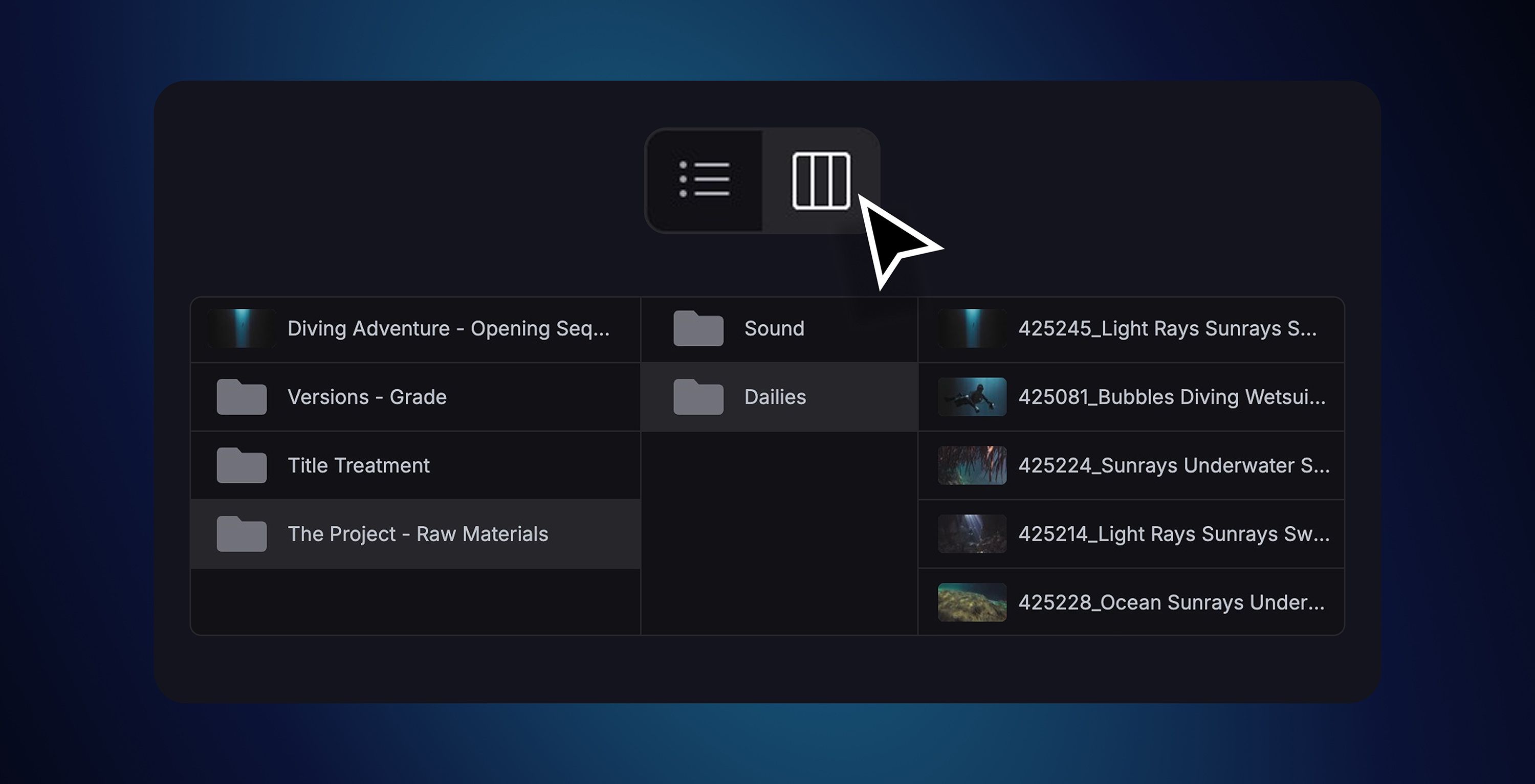
Browse your Filespaces in List View, or Column View
1. A better way to manage your files
We’re aware that file management can be a drag, and we’re working hard to address this. Our most recent changes include:
- Clearer presentation of your content: in addition to List View, Filespaces can now be browsed in Column View too. You can also sort your content and adjust the density of your view using the new Filter controls.
- Easier movement of files: drag-and-drop files or folders, or use the new ‘Move’ action to choose a destination for your content.
- Duplicate files: instantly duplicate files in your Filespace to create ‘clean’ versions, without comments attached.
- Higher quality playback: 1080p files are now transcoded at 16mbps, meaning your fast-moving or animated content will play back with greater clarity and detail.
- Create folders from files: select multiple assets, right-click and create a folder from those assets.
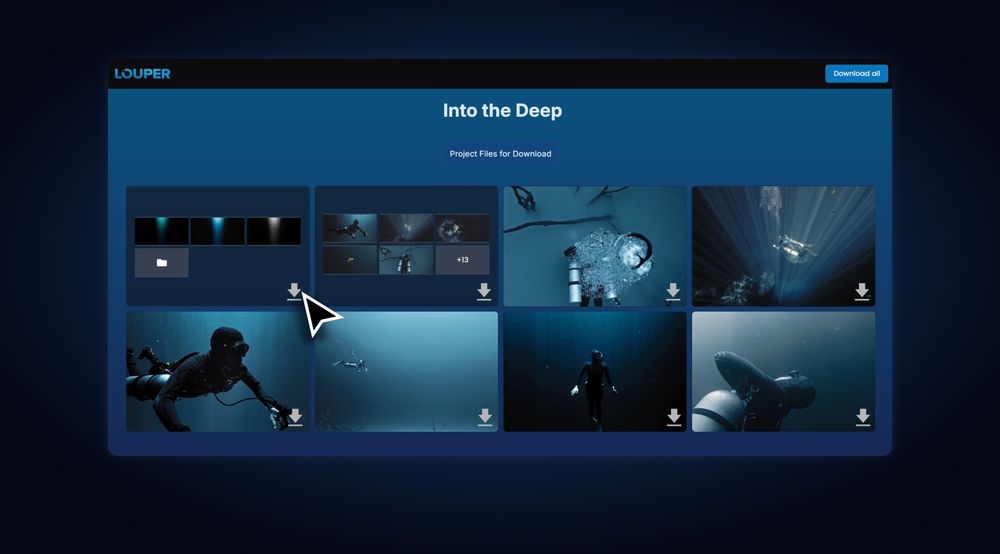
- Download folders from the Dashboard: download folders containing multiple files, and retain the original folder structure. This is available in Review Links, Showcases, and your Dashboard!
Move, duplicate and sort files with ease
2. Multiple Screenshares
Some conversations just require more: more people, more perspectives, more inputs. We’ve now enabled multiple Screenshares in a Room, allowing for more complex creative discussions and workflows.
- In-Focus, or tiled: Focus on one Screenshare at a time, or pin up to four Screenshares to tile them in the viewer.
- In sync, or independent: Hosts can manage which Screenshare is shown large, or how many Screenshares to pin on screen. Alternatively, they can release the sync and let participants manage their own view.
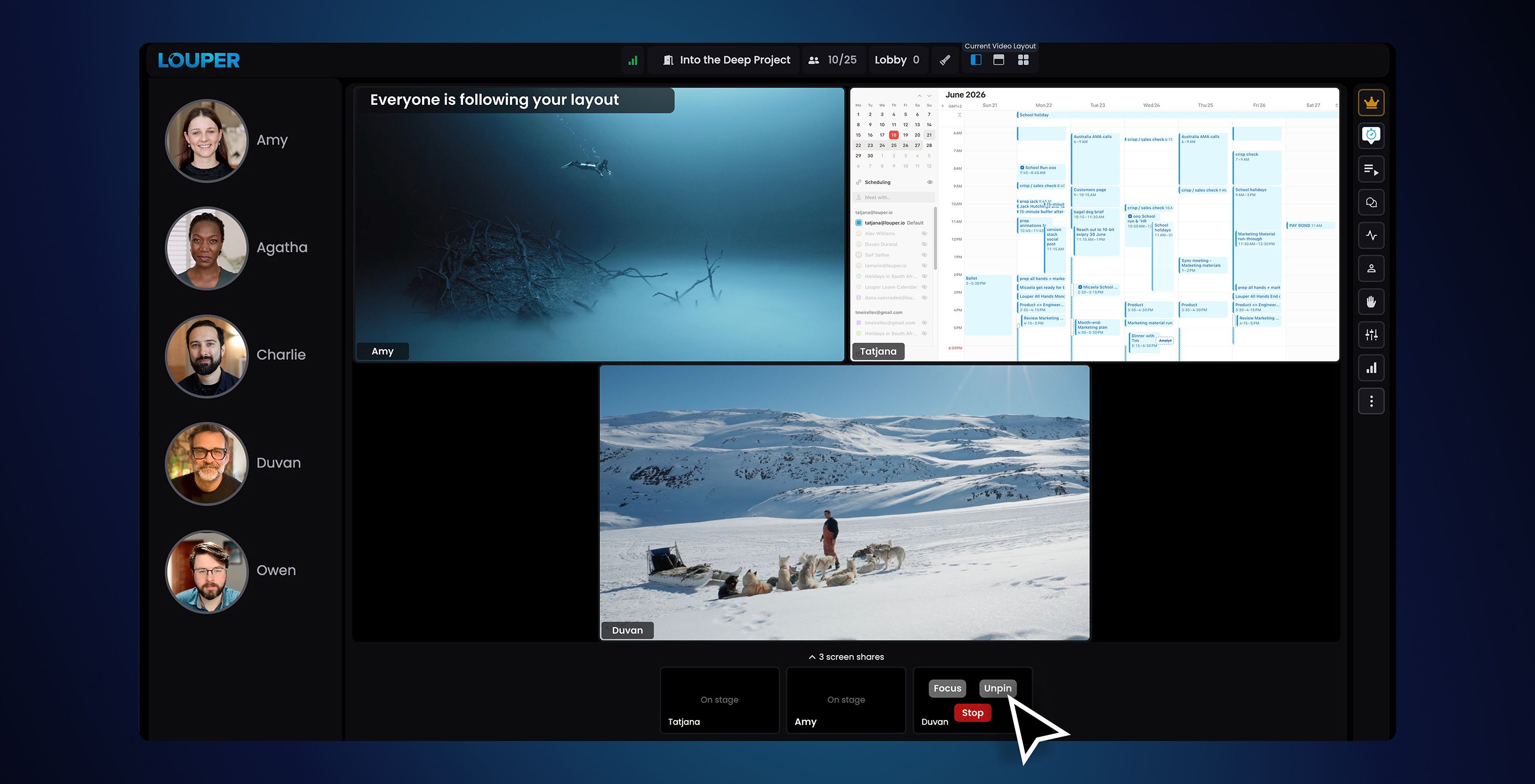
Multiple participants can share their screens in a Louper Room
3. Smoother hybrid sessions
More review sessions now involve a mix of remote participants on Louper, and in-person guests in a suite. We’ve prioritized tools to make this complex hybrid setup a little easier!
- Auto-ducking mic mode: this setting automatically disables your mic while audio is streamed into the Louper Room, and immediately opens it again when the streamed audio stops. Enable this mic mode for the Host and in-person guests, to avoid local audio feedback.
- Drop local guests’ audio in the Host’s Room: you can now reduce the mic volume of individual participants to 0%. This allows the Host to output the conferencing audio from the Louper Room into the physical suite, enabling effective communication without creating an echo when local guests speak.
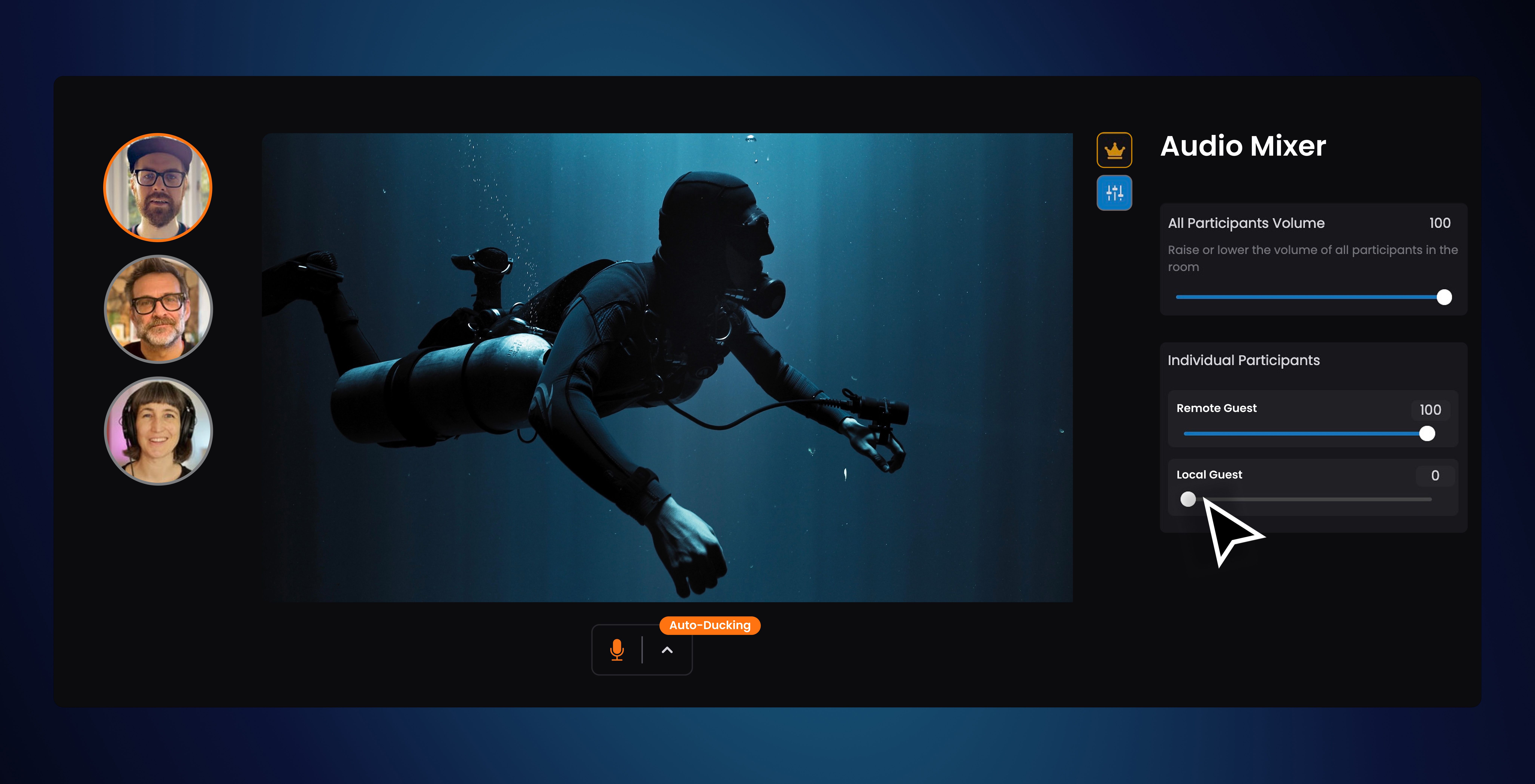
Auto-ducking mic mode helps prevent audio feedback when livestreaming
4. Drag-and-drop files into the Room text chat
Often guests in your session have files they need to share - references, titles, stills, audio or logos. Now they can easily do this by dragging and dropping their files into the text chat, for the Host or participants to download on their end.
- Easy upload: click the “Plus” button, or drag and drop your files into the text chat.
- Share: stills, videos, audio files and documents, up to 1GB in size.
- Download now or later: download files from the chat during a session, or access them from your Dashboard, in your “Room Chat” Filespace.
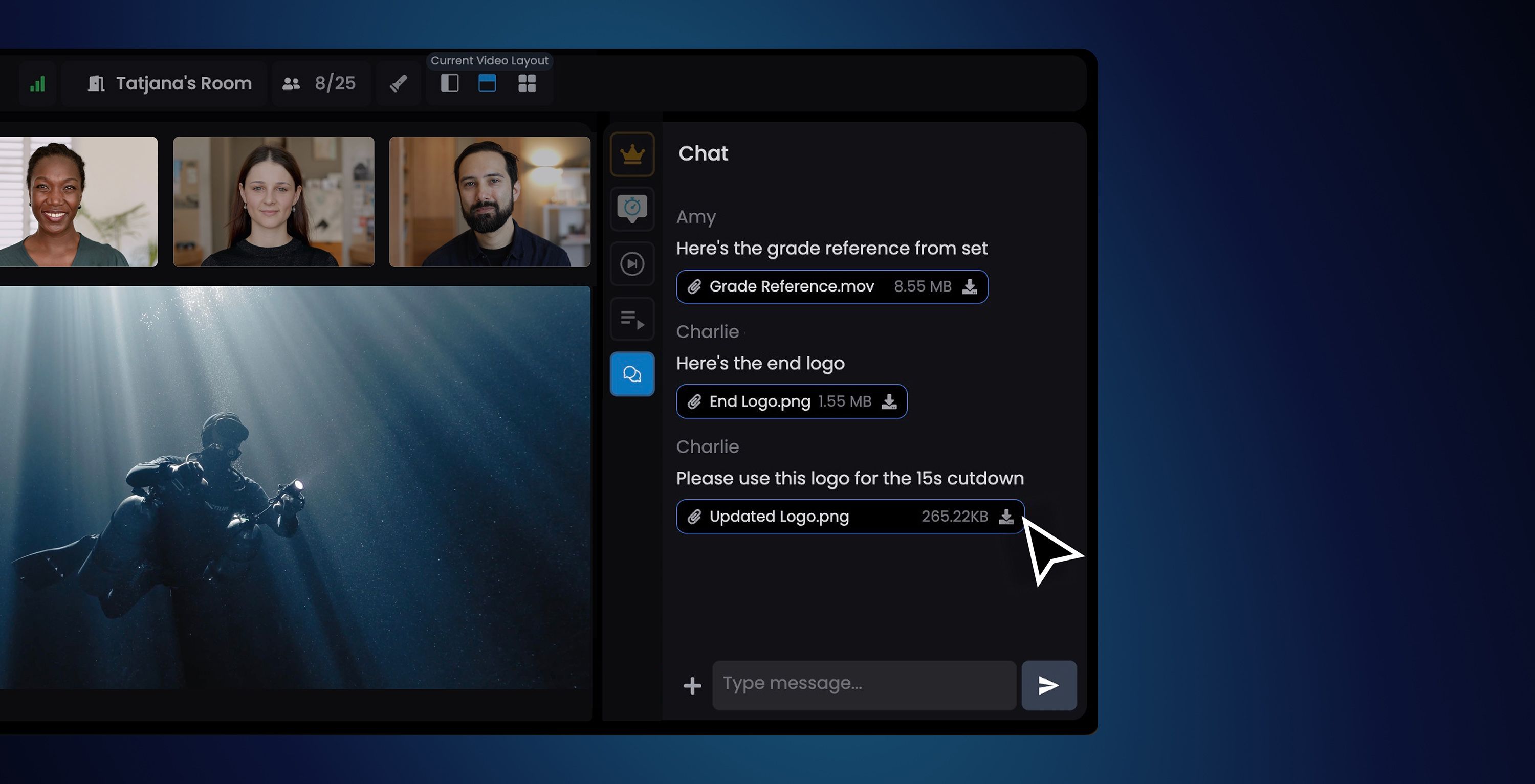
Drop files into the text chat to share them with your team
5. Output your stream to Blackmagic Hardware
Need to display a Louper stream on a client monitor or reference display? With our latest version of Louper StreamConnect for Mac, you can now receive a Louper stream and output it to an external monitor via Blackmagic Hardware.
- Easy setup: just download the latest StreamConnect app for Mac, and paste the StreamConnect code to receive the stream.
- Output to Blackmagic: Click on “Blackmagic Output” and select the hardware that is currently outputting to an external display.
- Review and Approve: the clean stream from Louper will now be presented on your external display - making reviews that much slicker for guests.
- 10-bit Streams: this is a great workflow for reviewing streams in 10-bit. Sign up for our 10-bit Private Beta if you’d like to test this out!
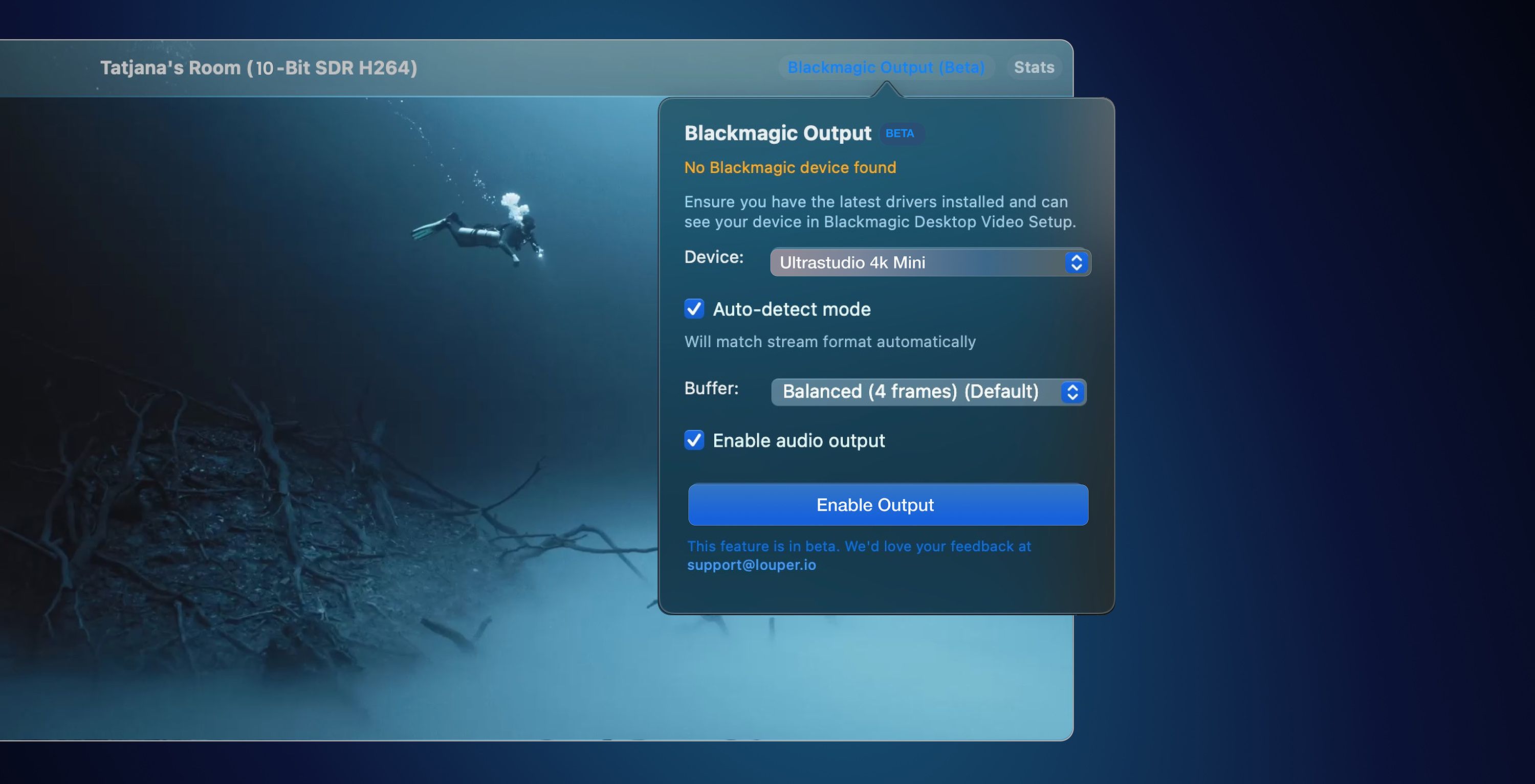
Output your 10-bit stream to an external display with StreamConnect for Mac
Try these new features the next time you’re in a live session, or working with content in your Filespace. Feel free to contact our support team if you have any questions, feedback or feature requests.
We're continually working to improve Louper, and we push regular updates to the app. Keep an eye on our Release Notes to stay up to date with everything that's new.

Use Louper to stream and collaborate on live shoots, edit sessions, vfx reviews and more - securely and in seriously high quality.

